20230713-WHP-LinkSocialAccount-TopBanner-2880×1120 - IMD Business School 20230713-WHP-LinkSocialAccount-TopBanner-2880×1120 - IMD Business School 20230713-WHP-LinkSocialAccount-TopBanner-2880×1120 - IMD Business School
Link a social account to your MyIMD account​

Walkthrough​

Link a social account to your MyIMD account​

Walkthrough​

1.  ​

When logged in your MyIMD account (if you don’t have one, click here to see how to create one).

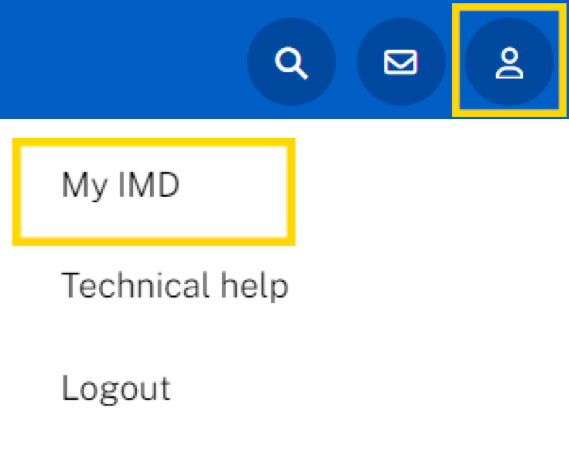
click on your profile icon,

and then on My IMD .​

cacb541d-0137-4230-ae48-66702e6e8353 - IMD Business School

2.

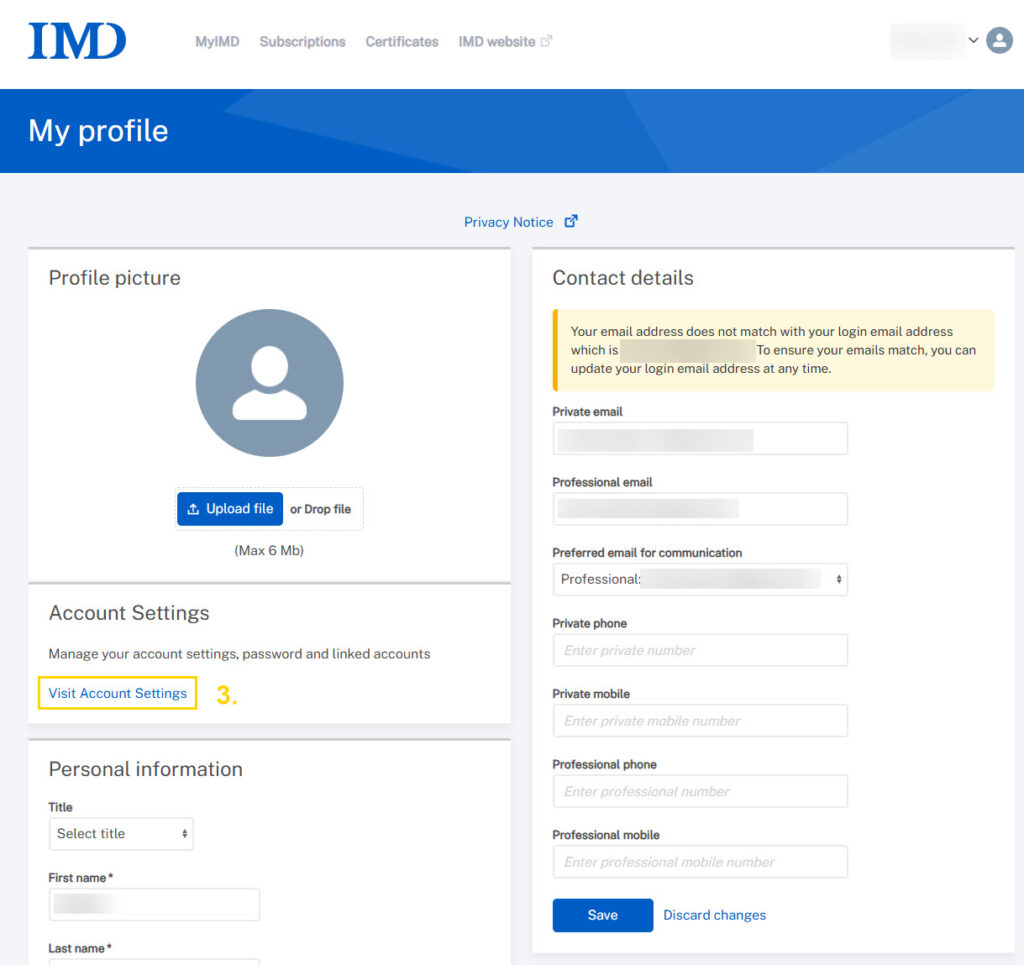
Click on your profile icon, then click on​

“My profile” then on “Visit Account Settings”
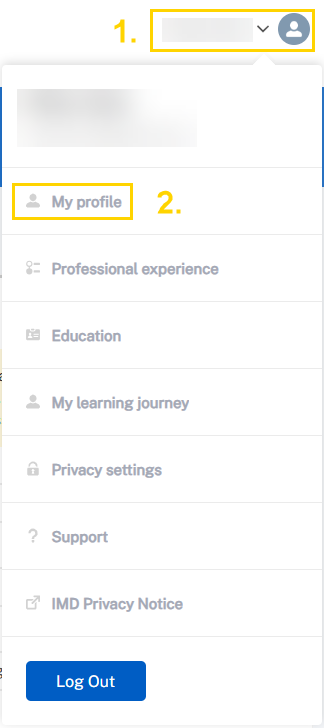
image - IMD Business School
image
Update Ux2025 - IMD Business School
Update Ux2025

3.

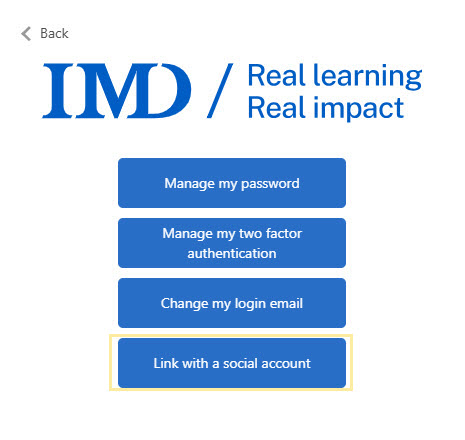
Click on Link with a social account.​

ManageMenu - IMD Business School

4.

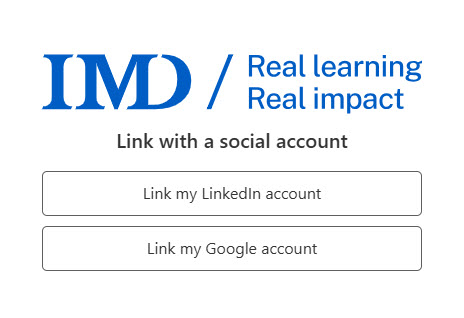
Select the social account you want to link and log in.​

Your MyIMD account is now linked with your social account.​

Note: If you wish to unlink a social account, you’ll have the option from this page to unlink it.  ​
social02 - IMD Business School
20230630-HelpPages-SimpleCard-740×374-a - IMD Business School
Need help?

Opening hours (CET): Mon-Fri: 08:00 – 17:00

Support portalservice.imd.org

Emergencies+41 (0) 21 618 0789

Email[email protected]