Walkthrough
Create a MyIMD account
Walkthrough
A. Create an account
1.
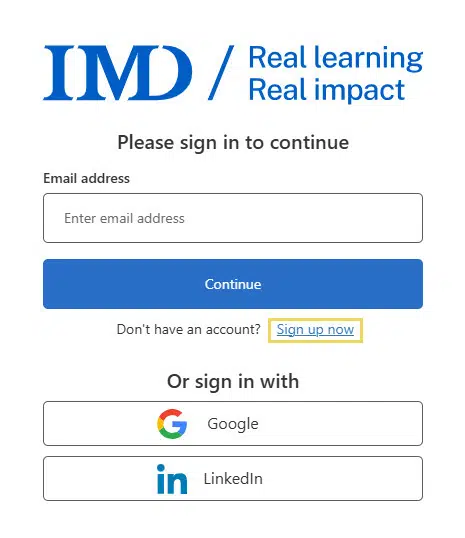
You first need to start the sign up process.
Click on the profile icon.
Then click on Sign up now.

2.
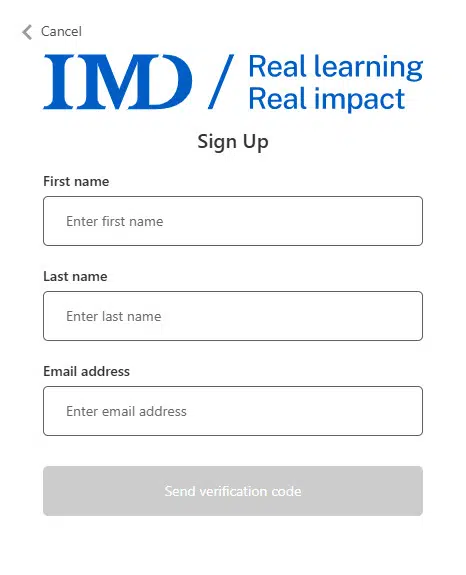
Enter all your contact details, click on the Send verification code button.
3.
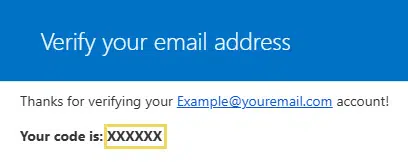
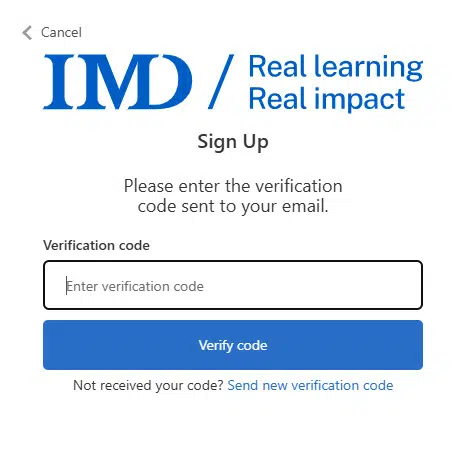
In the e-mail you received, copy the code and go back to our website.
4.
Enter the code and click on Verify code
5.
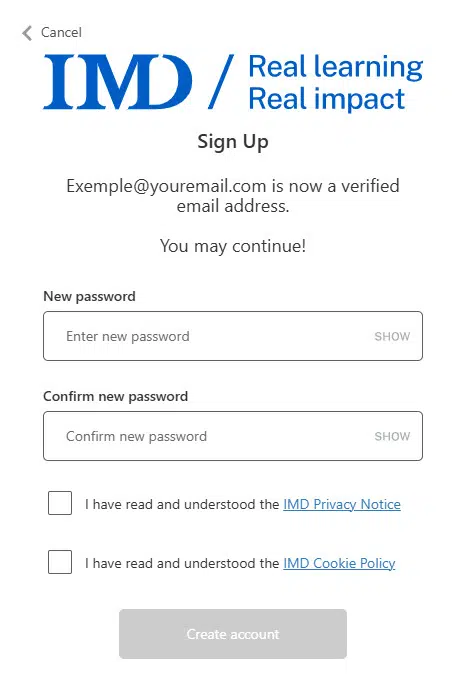
Enter your new password and click on Continue.
Please note that your password must contain both of the following :
- at least 8 characters
- a lowercase letter
- an uppercase letter
The password must also contain at least one of the following:
- a digit
- a special character
6.
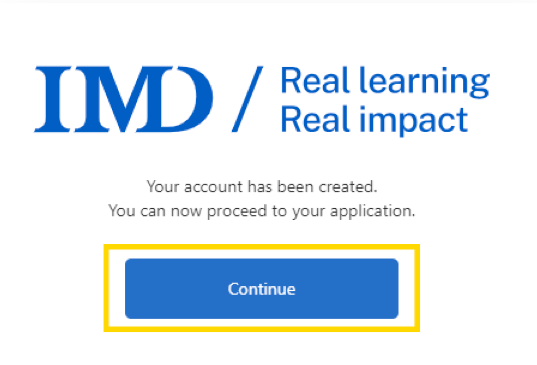
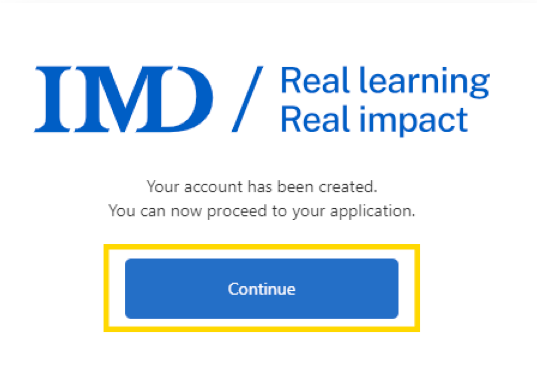
Your account has been created!
*The process can take between 10 seconds and one minute.
Click on Continue to be redirected to the homepage.
B. Add 2-factors authentication (2FA)
1.
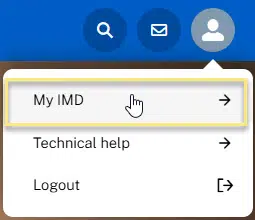
When logged in your MyIMD account, click on your profile icon and then on My IMD.
2.
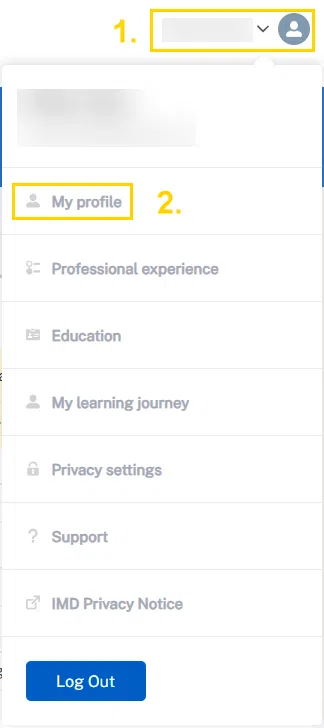
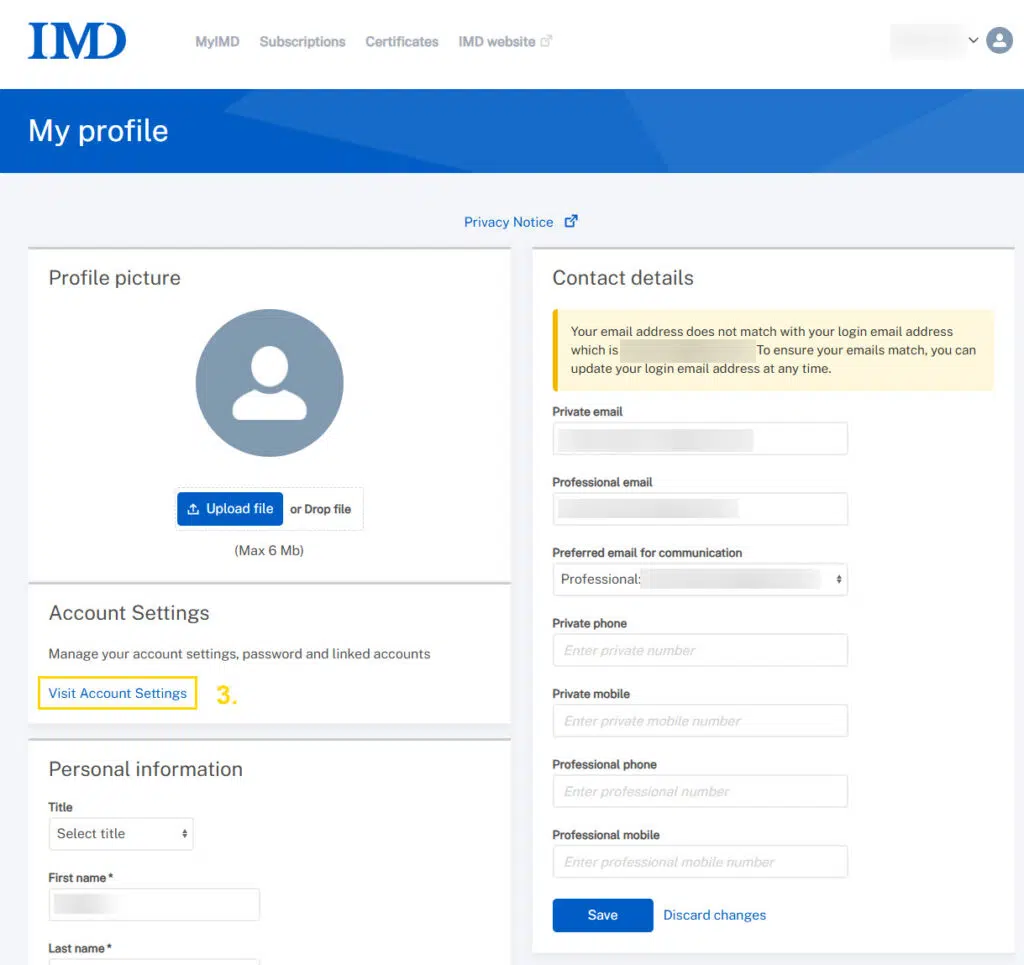
Click on your profile icon, then click on My profile.
In the menu, click on “Visit Account Settings”
3.
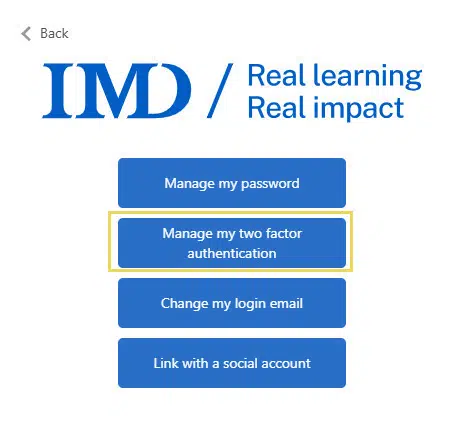
Click on Manage my two factor authentication
4.
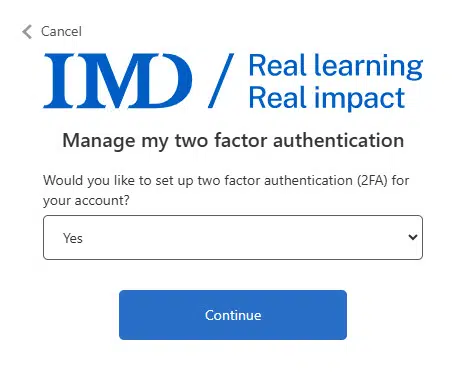
Select Yes and click Continue.
You will be redirected to the main menu, logoff and connect again.
5.
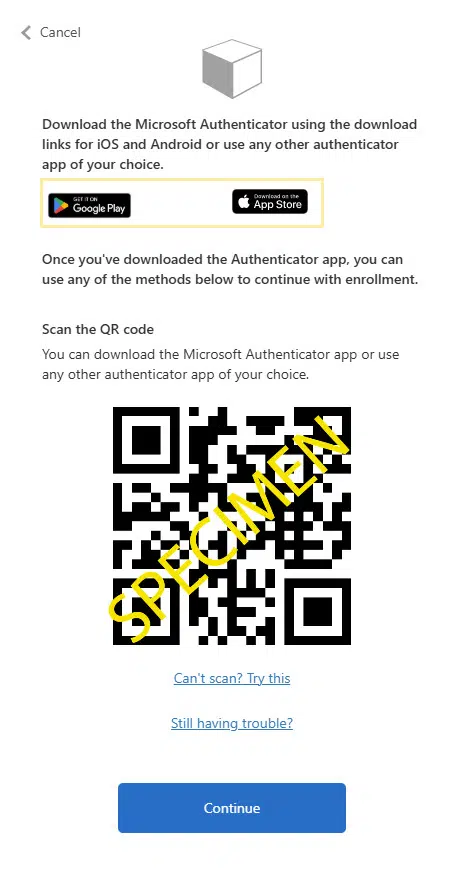
On the next login you will be asked to download the Microsoft Authenticator App using the download links available on the page.
Then scan the QR code with the app.
Once your account has been added to the authentication app, click on Continue.
4.
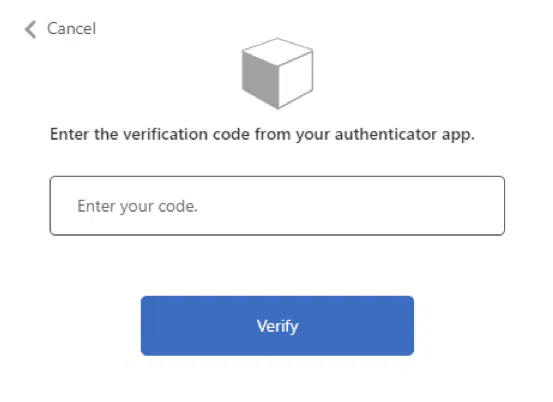
Copy the code available in your authenticator app and enter it.
Note: Your code changes every 30 seconds.
Click Verify.
C. Create an account using your social account
1.
You first need to start the sign up process.
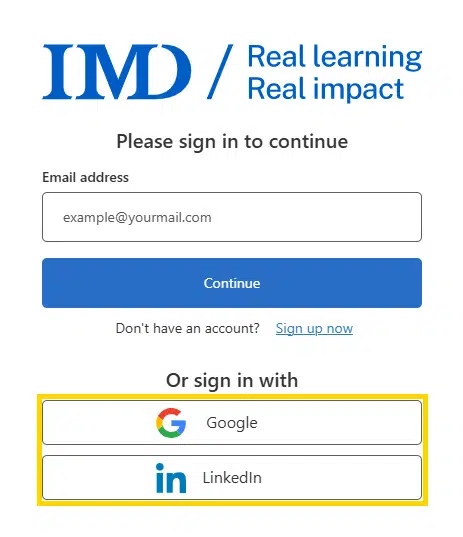
Click on the profile icon.
Then click on the Google or LinkedIn button and log in using your social account.
2.
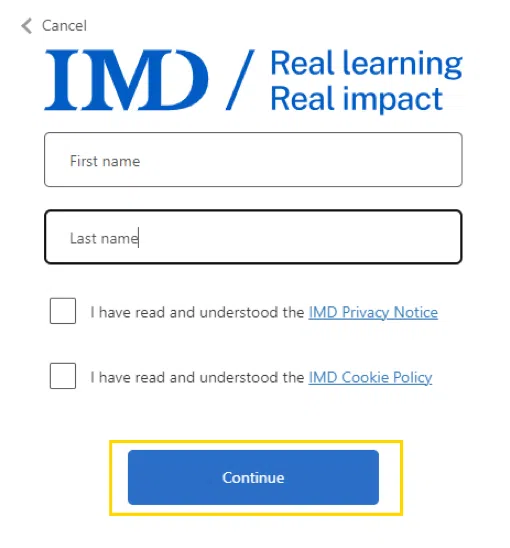
Once logged in, complete the form
and click on Continue.
3.
Your account has been created!
*The process can take between 10 seconds and one minute.
Click on Continue to be redirected to the homepage.